
✨ Writing Your First LuaHook Script
Step 1: Choose a Target App
First, select a target application you want to Hook.
Step 2: Enable LuaHook in Lsposed and Check the Target App
- Open Lsposed and enable the LuaHook module.
- In the module settings, check the target app you want to Hook:

Step 3: Add Target App in LuaHook
- Go back to LuaHook and navigate to the "Apps" page.
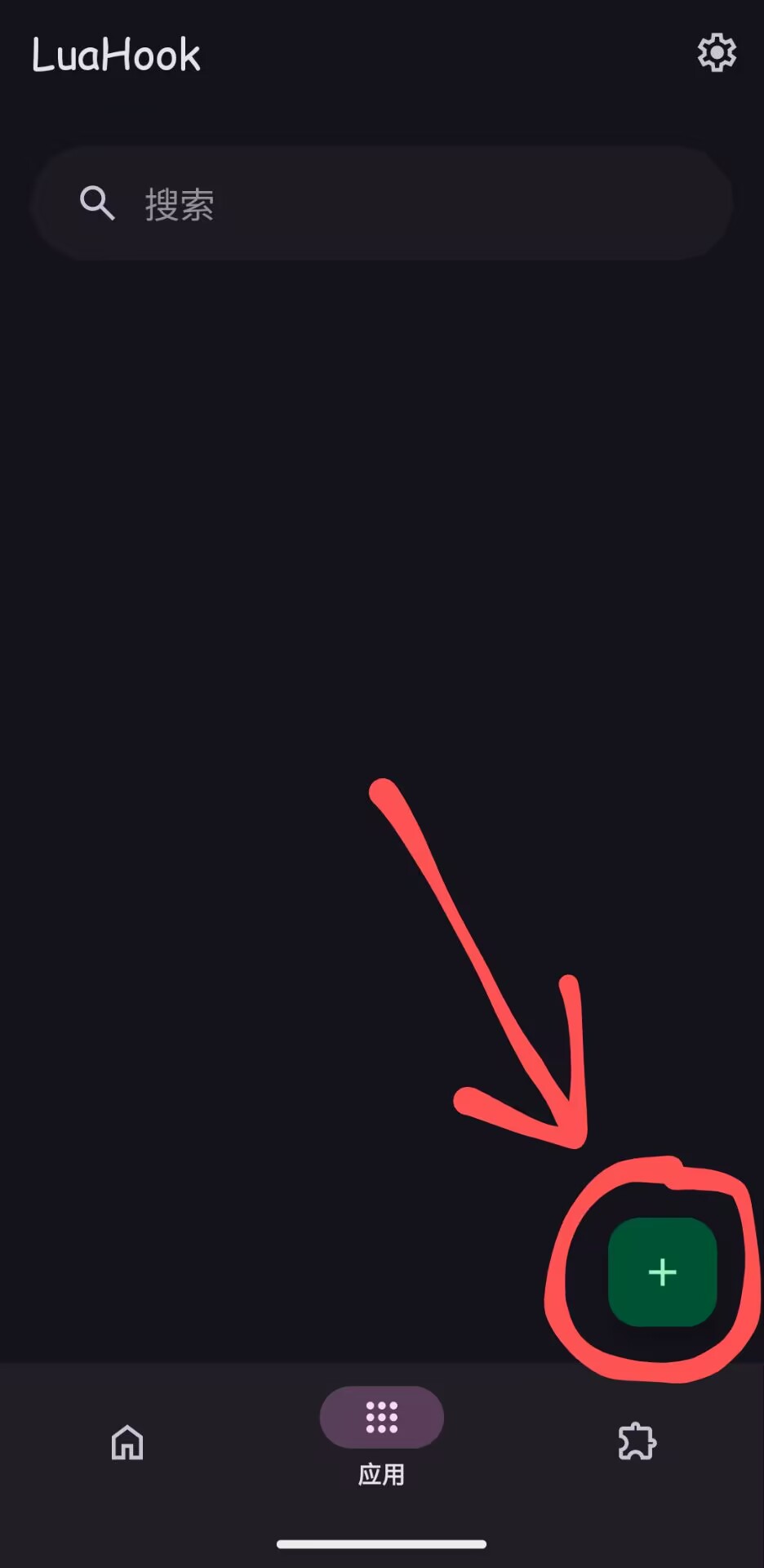
- Click the "+" button in the bottom right corner to expand the menu:
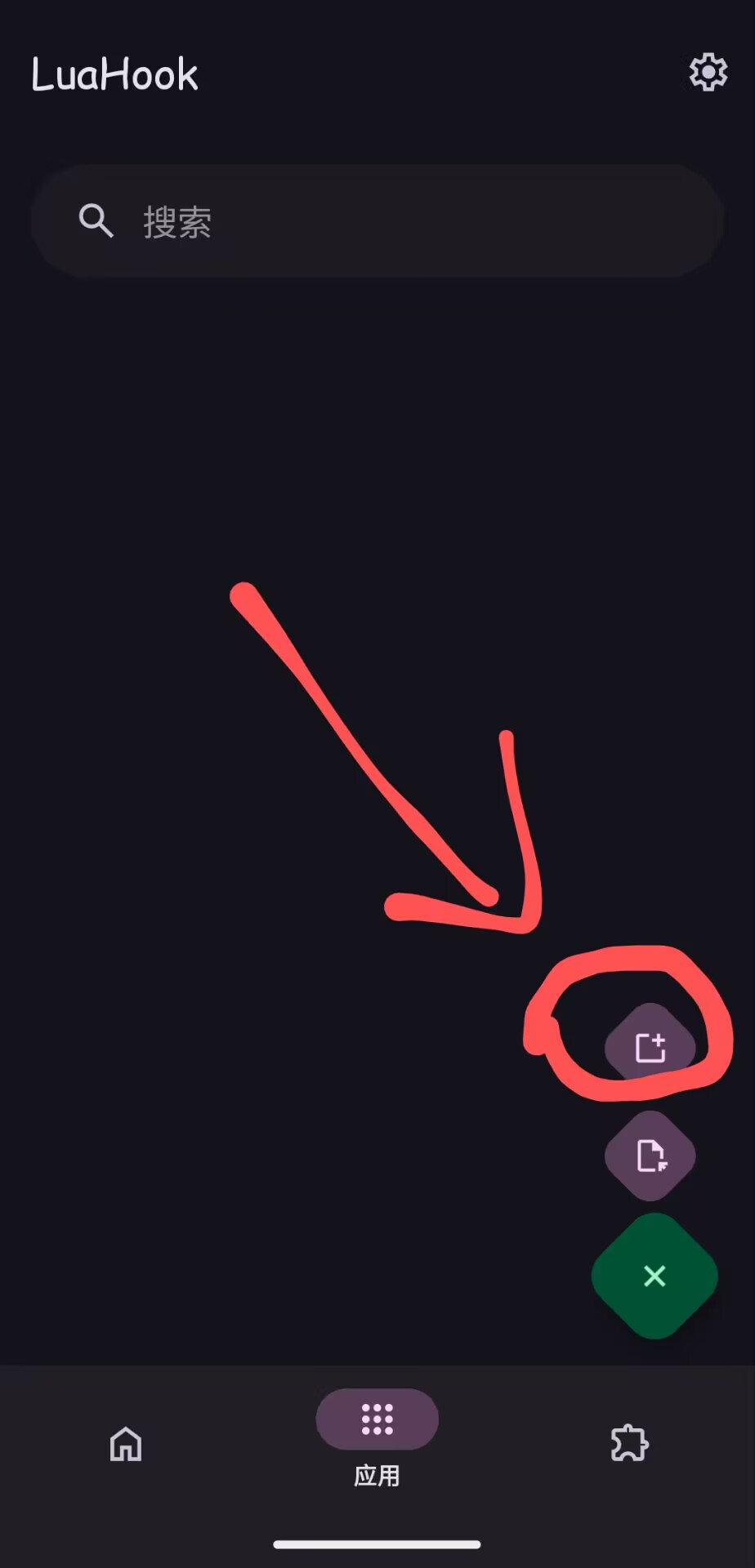
- Select "Add App":
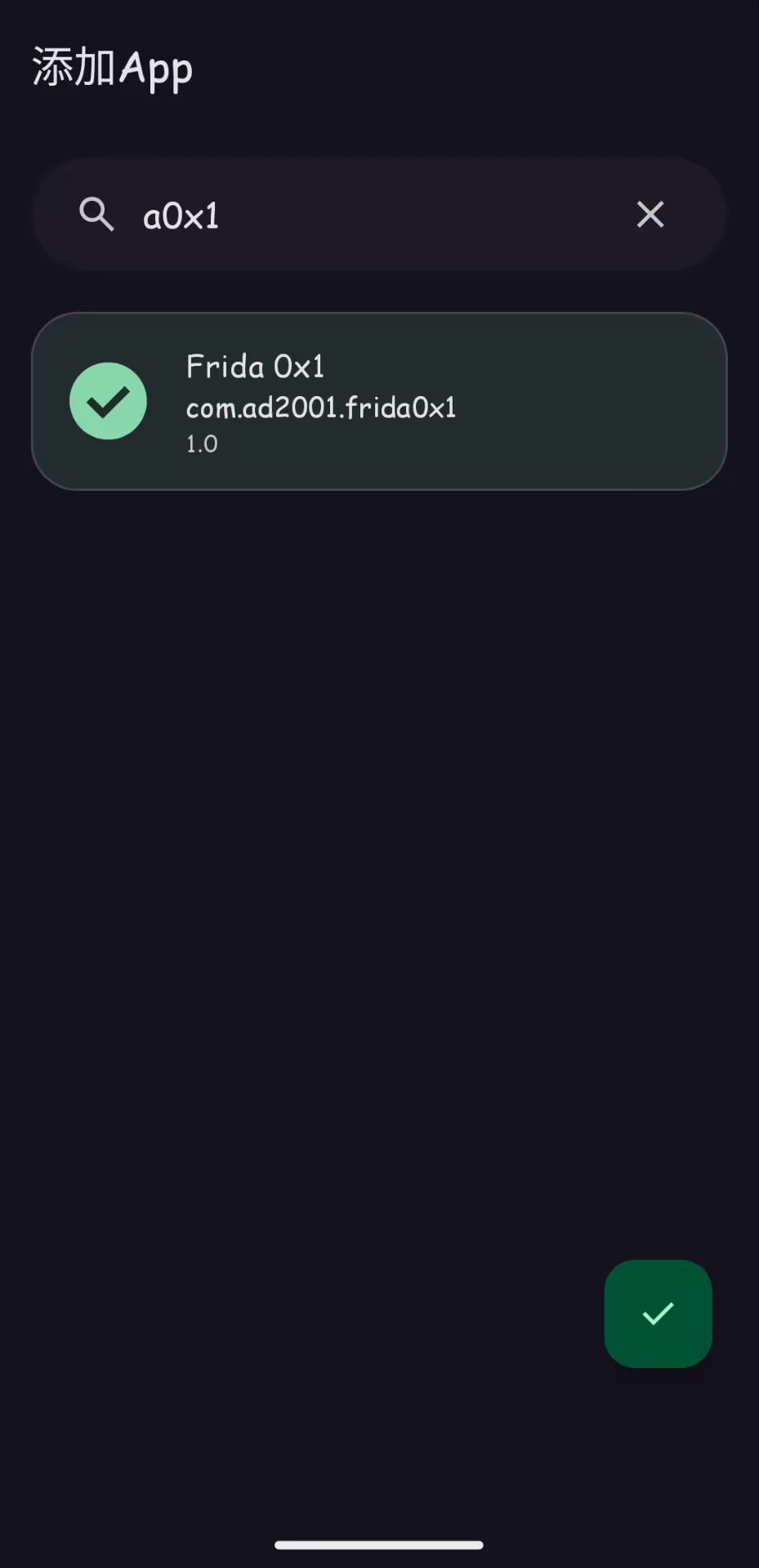
- Find the target app, check it, and click the "✔" in the bottom right corner to save:
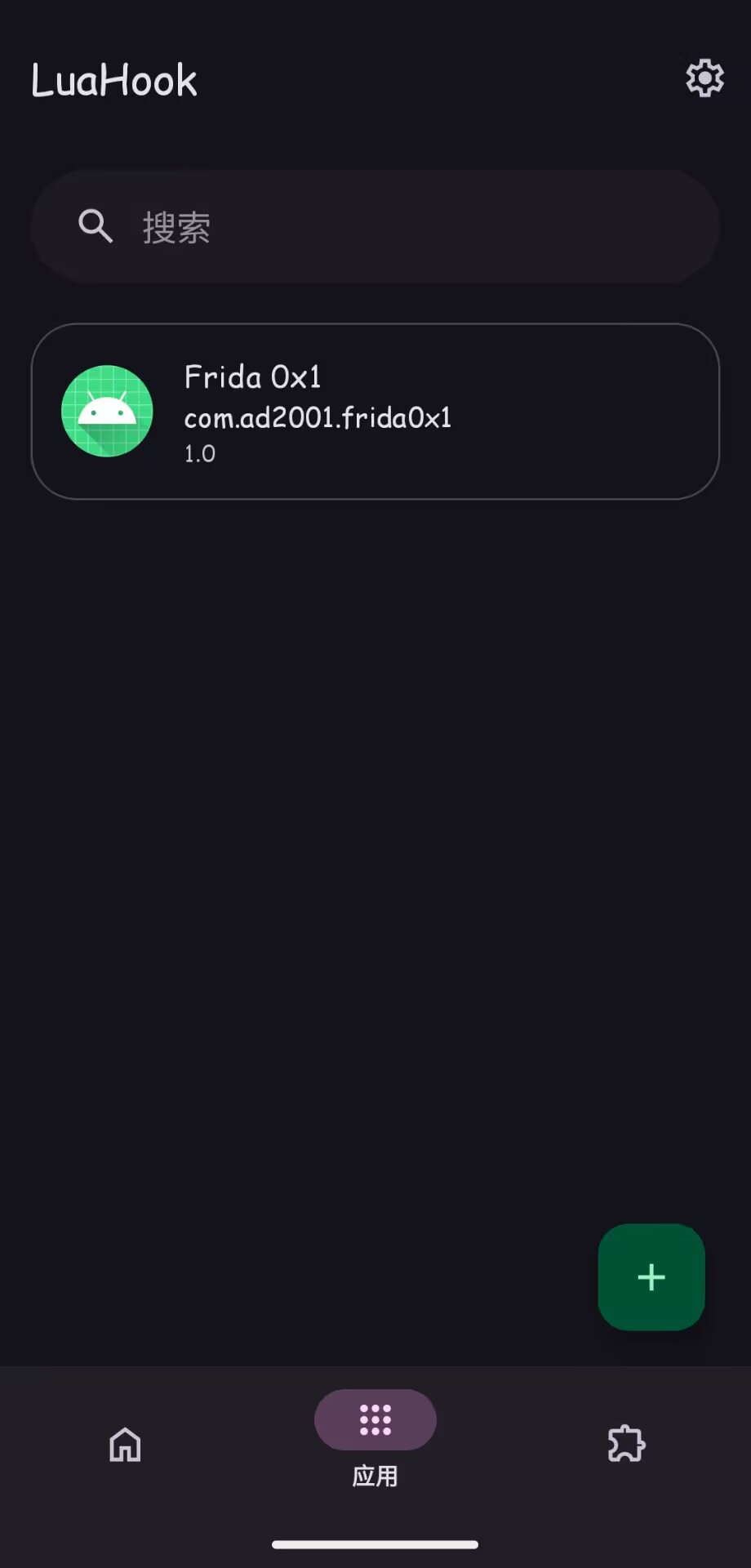
- Return to the app page, and you will see the app has been successfully added. Click it to enter the script management interface:
Step 4: Create a Script
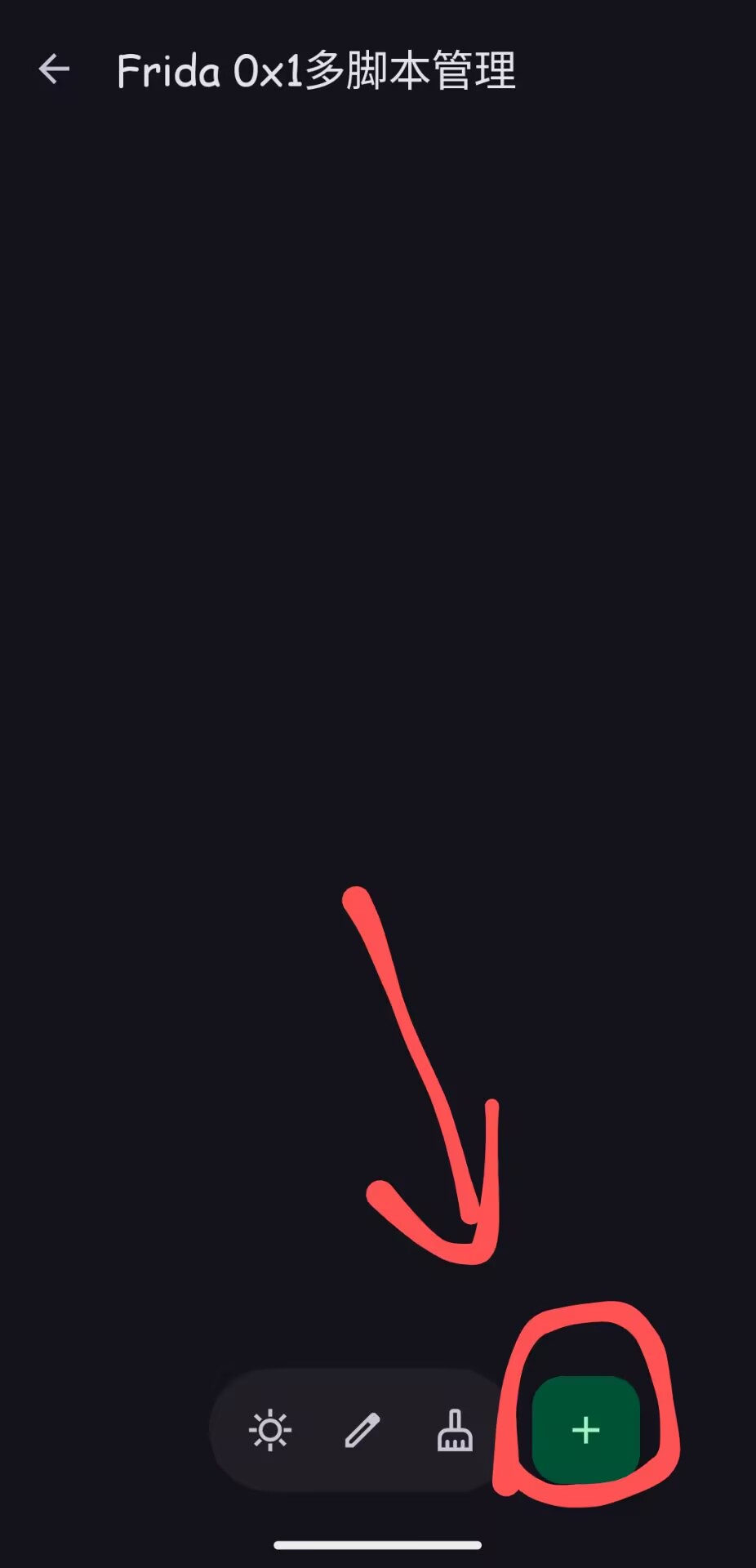
- Enter the "Multi-Script Management" page and click the "+" in the bottom right corner to create a new script:
- Give your script a name:
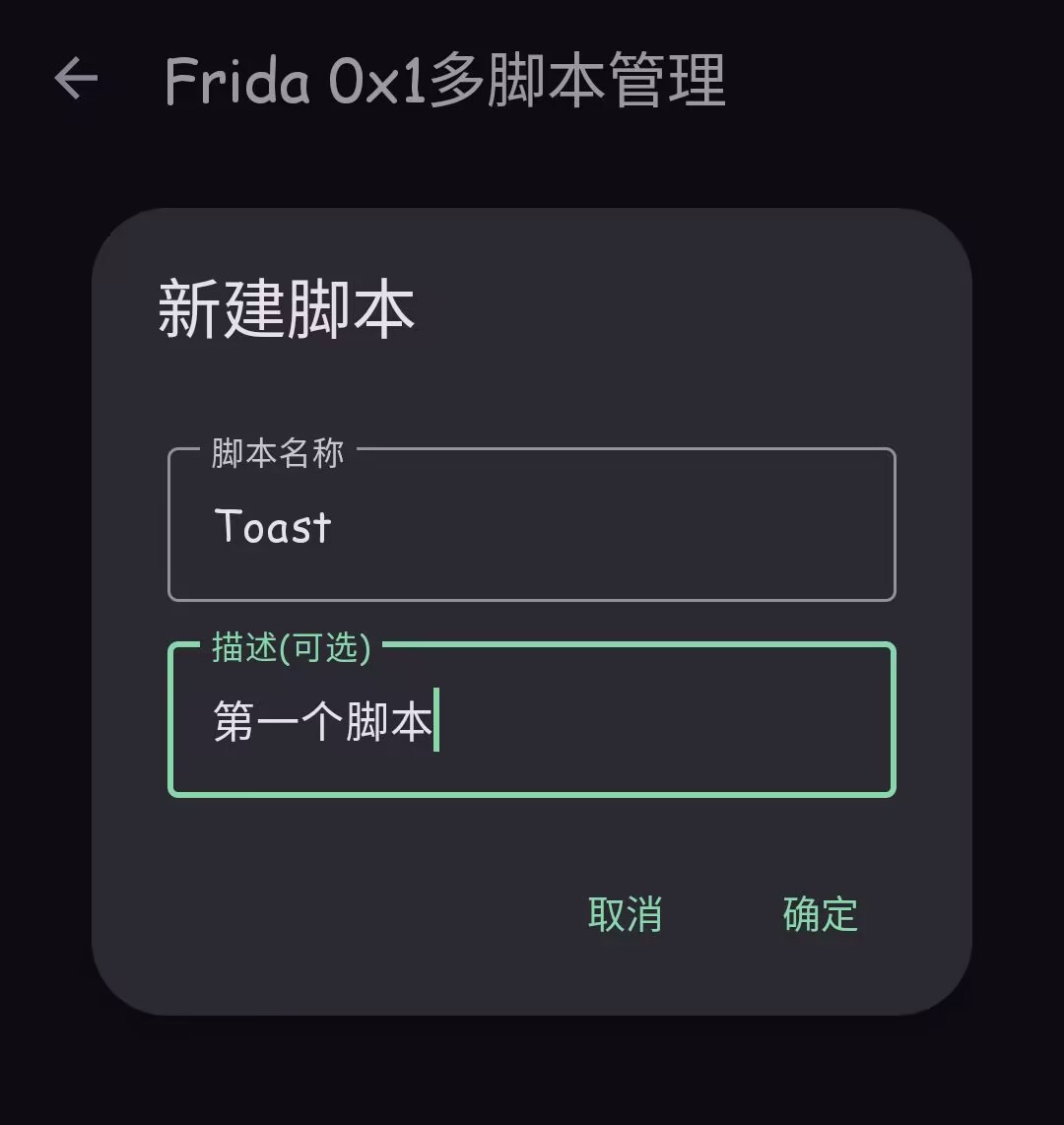
- After naming, click confirm to enter the script editing page.
Step 5: Write Script Code
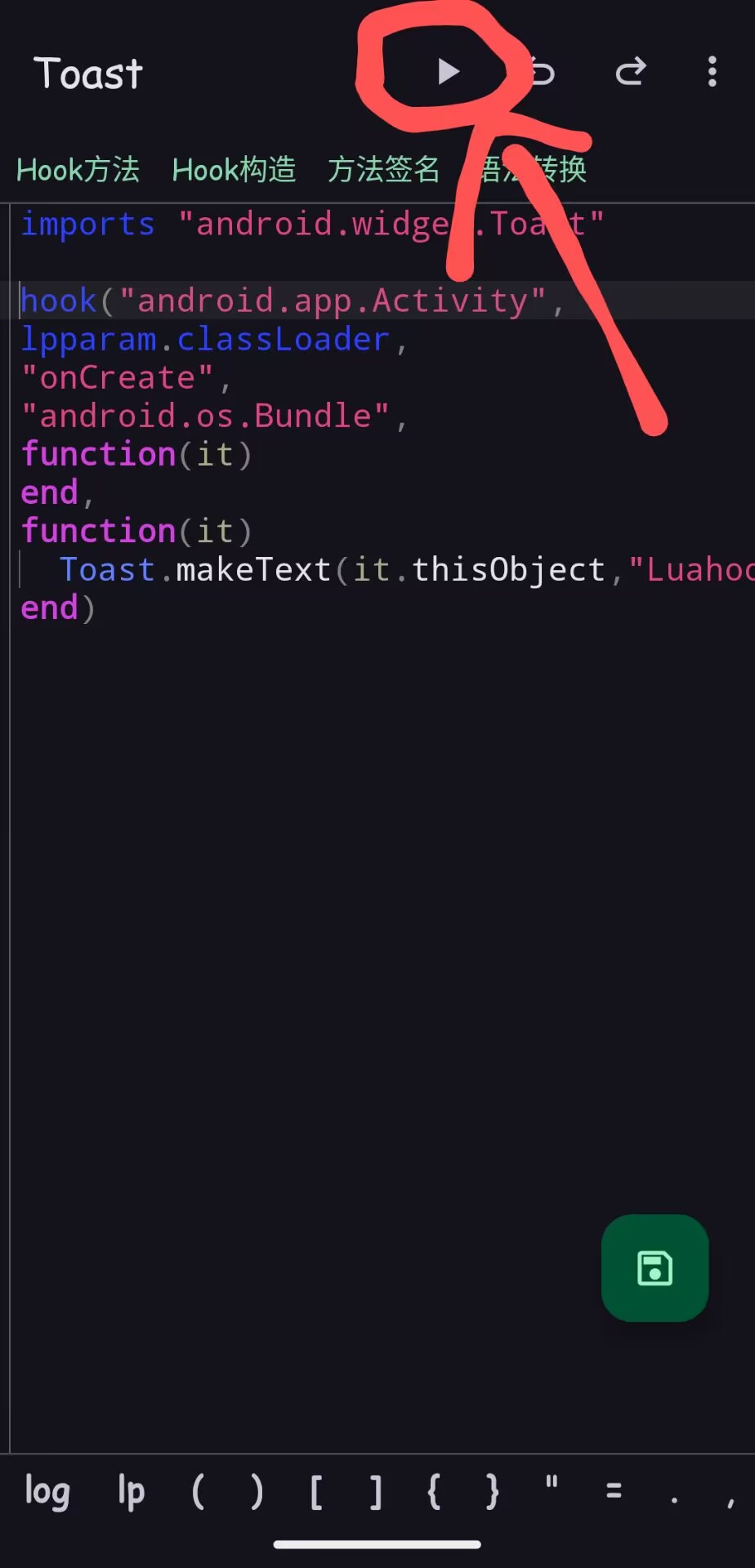
Enter the following example code in the editor, which will pop up a Toast when the target app starts:
lua
imports "android.widget.Toast"

hook {
    class = "android.app.Activity",
    method = "onCreate",
    params = {"android.os.Bundle"},
    before = function(it)

    end,
    after = function(it)
        Toast.makeText(it.thisObject, "Hello LuaHook!", Toast.LENGTH_SHORT).show()
    end
}
Step 6: Run and Test
- Click the "Triangle" button at the top to launch the target app:
- If you see a Toast message "LuaHook" popup at the bottom of the target app,
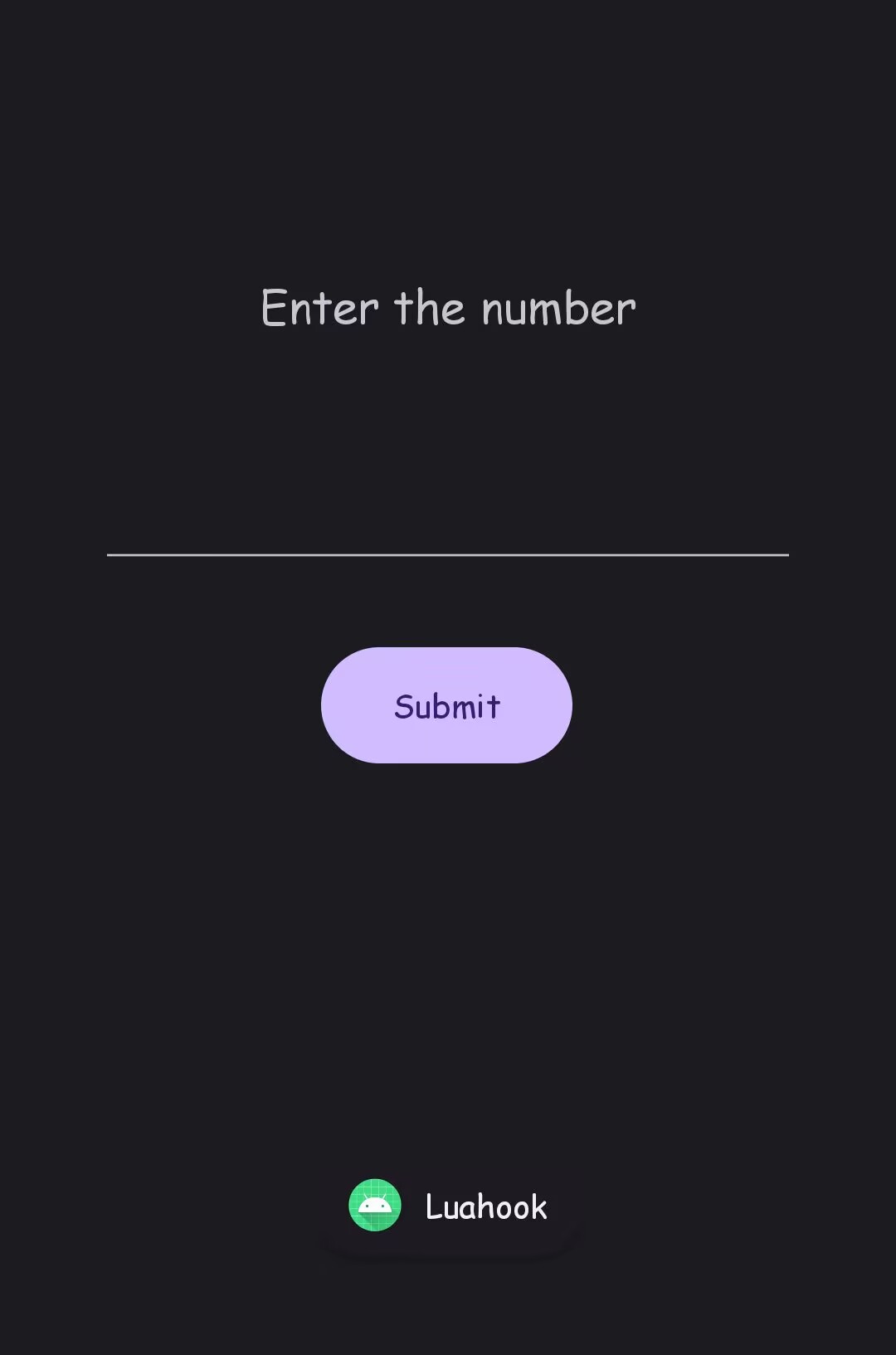
✅ Summary
You have completed your first LuaHook Hook operation and successfully ran a simple script. Next, you can try:
- Hooking other methods and classes
- Using more Android APIs
- Uploading and sharing your scripts to the LuaHook Online Script Repository